
Requirement: We need to audit the entity form tab click event to determine how frequently technicians are engaging with the data available in each tab.
Additionally, the requirement is to ensure that the auditing data is not stored within the CRM Dataverse.
Solution: I then considered using Azure Blob to store the audit data captured from the tab click event. To achieve this, we will use JavaScript to post the data to Azure Blob.
Hence, we will need to create two custom field as shown below
| Attribute Name | Schema Name | Data Type |
| Upload to Blob Storage | new_uploadtoblobstorage | Two OptionSet (true, false) |
| Audit Log | new_auditlog | Multiline Text |
JavaScript: JavaScript logic can be triggered on the tabstatechange event. Therefore, when a tab is clicked, we can update the “Audit Log” field with the necessary information and set the “Upload to Blob Storage” flag to true.
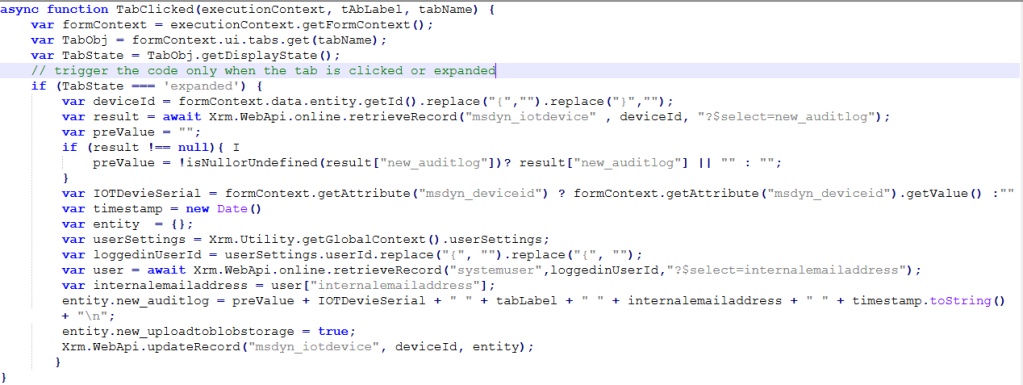
Now, register the function TabClicked on form TabStateChange, below are the stesp that needs to be followed.

Power Automate: To post the data to the configured blob storage file.
I didn’t want Power Automate to trigger on each tab click, as it would significantly impact performance and could exceed execution limits. Instead, we can utilize the Recurrence component in Power Automate to schedule it to run at specific intervals— in our case, every 15 minutes.
When the flow triggers, it checks records in the IoT Device entity where “Upload to Blob Storage” is set to true. Upon executing the fetch query, it retrieves the attributes new_auditlog, new_uploadtoblobstorage, and msdyn_iotdeviceid from the IoT Device entity.
Below are the steps which can be followed to achieve the ask:

After executing the query, check the result length to ensure the retrieved record count > 0. This check ensures that Azure Blob is called only when there is data to post.
If the record count is greater than zero, the “Yes” condition is triggered, establishing the Azure Blob connection to post the data to the blob file.

Login to portal.azure.com, search for storage accounts, and select the containers. Then, upload a .txt file to the container where all audit data will be captured using a Power Automate job.


Select the right storage account details within power automate referring to Azure portal. Till here the data posting from Dataverse to Azure blob storage is completed.
Data Clean Up Activity:
Once the data is successfully post to Azure, so there is now no need to have data redundancy, therefore below update is required for performing data cleanup activity within Dataverse.
- Updating the Audit log attribute to null,
- Upload to Blob Storage to No


I hope this help anyone to post data from Dynamics 365 to Azure blob.
Happy Learning!
Learning is a journey, not a destination — Unknown
 Building Solutions - Avinash Verma